How to Improve Website Speed: 15-Point Page Speed Checklist
Slow pages lose visitors and hurt search performance. Learn how to test your site for free, what Core Web Vitals mean and 15 practical fixes, plus WordPress and Shopify tips.
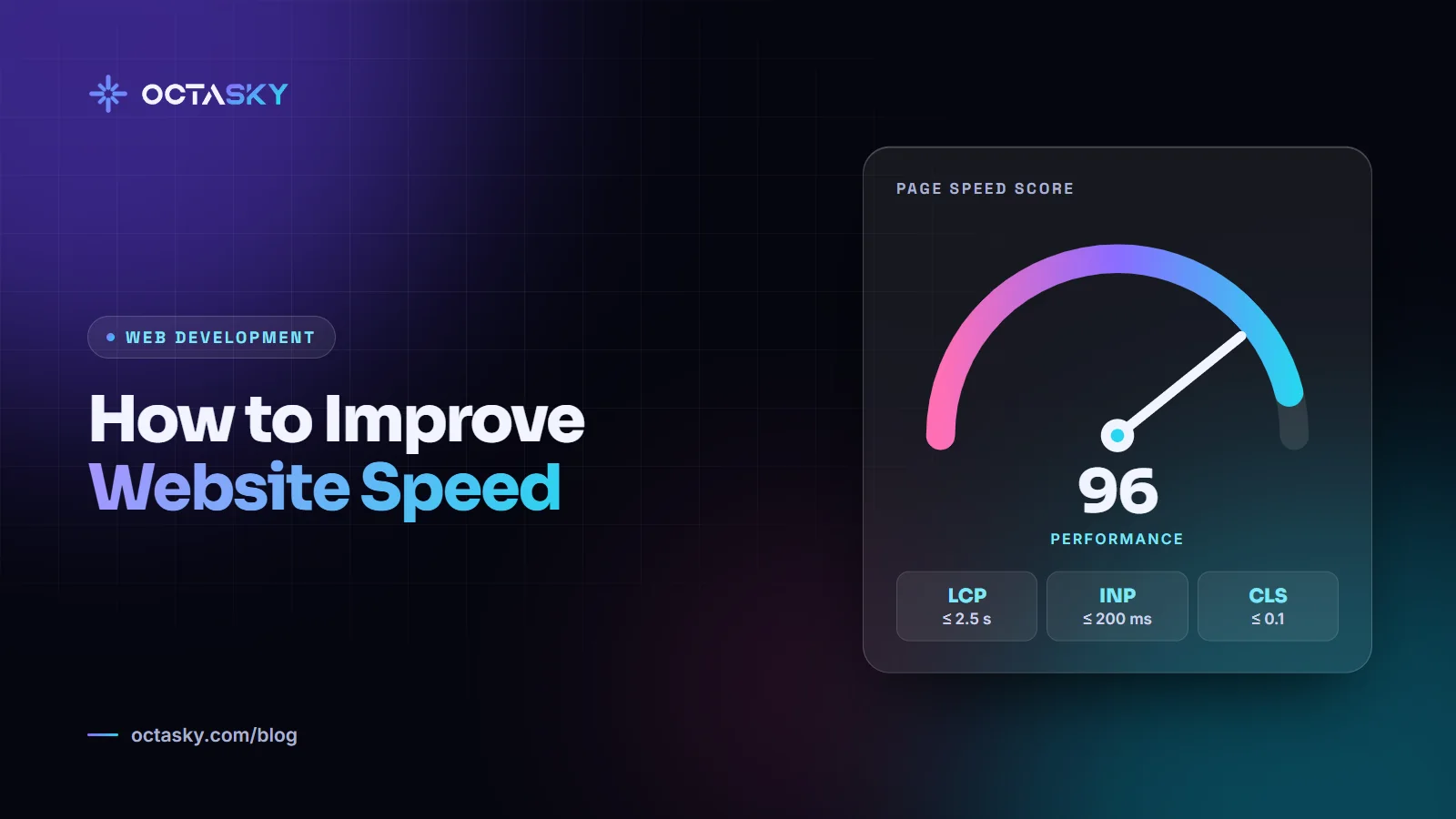
A slow website quietly costs you money. Visitors give up before the page loads, forms go unsubmitted, and search engines take page experience into account. If you're wondering how to improve website speed, the good news is that most problems come from the same handful of causes, and many are quick to fix.
This guide covers how to run a website speed test, what Core Web Vitals mean and a 15-point page speed optimization checklist, followed by specific tips for WordPress and Shopify. Measure before you start and after every change, so you know what actually helped.
How to test your website speed
Use these free tools:
- PageSpeed Insights (pagespeed.web.dev) shows two kinds of results. Field data comes from real Chrome users over the previous 28 days, when your site has enough traffic. Lab data comes from a Lighthouse test in a simulated environment.
- Lighthouse in Chrome DevTools runs detailed lab audits on any page, including pages that aren't public yet.
- WebPageTest shows a visual filmstrip and a waterfall of every file, which helps you see exactly what loads late.
- Google Search Console has a Core Web Vitals report that groups your URLs into good, needs improvement and poor.
Website speed test for mobile
Always test the mobile version first. Phones on average connections are where slow sites hurt most, and PageSpeed Insights' mobile lab test simulates a mid-range phone on a mobile network. For a reality check, open your site on an older phone using mobile data, not office Wi-Fi.
Lab scores change a little between runs. Look at trends over several tests, and trust field data for what real visitors experience.
Core Web Vitals explained
Core Web Vitals are Google's three metrics for how a page feels to use. At the time of writing, Google's web.dev documentation sets these "good" targets, measured at the 75th percentile of page loads:
- Largest Contentful Paint (LCP): the main content appears within 2.5 seconds. It's usually a hero image, banner or large heading.
- Interaction to Next Paint (INP): the page responds to taps, clicks and key presses within 200 milliseconds. INP became a stable Core Web Vital in 2024, replacing First Input Delay.
- Cumulative Layout Shift (CLS): the layout stays stable, with a score of 0.1 or less.
Google says Core Web Vitals are used by its ranking systems, but relevant content still comes first. Treat speed as a way to keep the visitors you earn, not as a substitute for good content.
How to improve website speed: the 15-point checklist
Work through these in order. The early items usually give the biggest gains.
Images
Images are usually the heaviest part of a page, so start here.
1. Use modern formats
Convert JPG and PNG images to WebP or AVIF. They're typically much smaller at the same visual quality, and all modern browsers support them.
2. Serve the right size
Don't send a 4000-pixel photo to a 400-pixel space. Resize images to the size they're displayed at, and use srcset and sizes so phones download smaller versions.
3. Lazy-load images below the fold
Add loading="lazy" to images further down the page so they load only when needed. Never lazy-load the main hero image at the top. It should load immediately.
4. Always set width and height
Give every image and video width and height attributes (or a CSS aspect-ratio). The browser can then reserve space, so content doesn't jump around as images load. This is one of the most common causes of poor CLS.
5. Prioritise the main image
The hero image is often the element that decides your LCP. Mark it with fetchpriority="high" and avoid hiding it behind sliders or JavaScript.
Fonts
6. Load fewer, lighter fonts
Every font family and weight is another download. Stick to two families and only the weights you use, serve them as WOFF2, use font-display: swap so text appears immediately, and preconnect to your font provider or host the files yourself.
JavaScript and CSS
7. Remove what you don't use
Old plugins, unused libraries, abandoned tracking tags and sliders nobody clicks all add weight. Audit them regularly and delete ruthlessly.
8. Defer non-critical JavaScript
Scripts in the page head block rendering. Add defer (or async where order doesn't matter) so the page can appear before scripts run.
9. Delay third-party scripts
Chat widgets, heatmaps, video embeds and social feeds are often the heaviest things on a page. Load them after the page is interactive, or only when a visitor clicks to open them. For videos, show a lightweight preview image until someone presses play.
10. Minify and compress
Minify HTML, CSS and JavaScript, and make sure your server sends files with Brotli or gzip compression.
11. Avoid render-blocking CSS
Keep CSS lean, inline the small amount needed for the top of the page if your setup allows it, and remove unused styles left behind by themes and page builders.
Server and delivery
12. Use a CDN
A content delivery network serves your files from locations close to each visitor. Services like Cloudflare offer this even on free plans.
13. Cache properly
Set long cache lifetimes for files that rarely change, such as images, fonts and versioned scripts. On WordPress and other CMS platforms, use page caching so pages aren't rebuilt for every visitor.
14. Choose fast hosting
A slow server delays everything. Look at Time to First Byte (TTFB) in your test results. Good hosting, a modern PHP or runtime version and HTTP/2 or HTTP/3 support make a real difference.
Keep it fast
15. Re-test after every change
Speed isn't a one-time project. New plugins, marketing tags, embeds and big images creep in over time. Re-test after releases and check your Core Web Vitals report monthly.
Making interactions feel instant
INP measures how quickly the page reacts when someone taps or clicks. To improve it, break long JavaScript tasks into smaller pieces, keep event handlers light, avoid huge page structures and remove scripts that run constantly in the background.
How to improve website speed in WordPress
WordPress sites often slow down because of what's added over the years, not WordPress itself. These steps usually make the biggest difference:
- Use page caching, through your host or a reputable caching plugin.
- Compress images on upload and convert them to WebP.
- Choose a lightweight theme, and think carefully before adding a heavy page builder to a new project.
- Remove plugins you don't need, and check what each remaining one loads on every page.
- Update PHP. At the time of writing, WordPress.org recommends PHP 8.3 or greater.
- Clean the database of old revisions, spam comments and expired temporary data.
WordPress core already adds loading="lazy" to many images (since version 5.5) and gives a likely LCP image fetchpriority="high" (since version 6.3). Check that a plugin isn't overriding this and lazy-loading your hero image.
How to increase page speed in Shopify
Shopify handles hosting and includes a CDN, so your work focuses on what you add to the store. Shopify's own guidance names your theme, installed apps and third-party code such as tag managers as the biggest factors.
- Audit your apps. Keep only those that earn their place. Uninstalling an app doesn't always remove its code from your theme, so check with the developer.
- Start from a fast theme. Shopify's free themes are built with performance in mind; test any third-party theme before buying.
- Limit sections and animations. Pages with many sections, or heavy theme animations, can load more slowly.
- Upload images at sensible sizes. Shopify's image CDN serves modern formats, but a huge original still costs time.
- Clean up tracking tags. Remove unused or low-value tags from your tag manager.
Shopify's admin also includes web performance reports covering loading speed, interactivity and visual stability. If you're still planning a store, our guide to Shopify store setup cost in Pakistan covers themes and apps.
FAQ
What is a good page speed?
Use Core Web Vitals as your benchmark: LCP within 2.5 seconds, INP within 200 milliseconds and CLS of 0.1 or less for at least 75% of visits. A perfect PageSpeed score isn't necessary; passing these thresholds for real users matters more.
Why is my website slow on mobile but fast on desktop?
Phones have slower processors and often slower connections, so heavy images and JavaScript hurt more. Mobile lab tests also simulate a mid-range phone on a mobile network, which is stricter than a desktop test.
Why does my PageSpeed Insights score change every time?
Lab tests run a single page load, and small differences in network and server timing change the result. Run several tests and compare trends, and rely on field data where it's available.
Does website speed affect SEO?
Yes, but it isn't everything. Google says Core Web Vitals are used by its ranking systems, while relevant, helpful content remains the priority. A faster site also keeps more visitors on the page, which helps every marketing channel.
How often should I run a website speed test?
Test after every significant change, such as a new plugin, app, theme or tracking tag. Beyond that, a monthly check of your Core Web Vitals report catches slow creep.
Build speed in from the start
Speed is a feature. A faster site makes every other marketing effort work a little harder for you.
If you're planning a new site, it's far easier to build speed in from the start than to fix it later. That's one of the factors we cover in how much a website costs, and in our guide to choosing a website development company in Multan.
OCTASKY's web team in Multan builds WordPress, Shopify and custom websites with speed in mind, and we're happy to look at your PageSpeed results with you if you're not sure where to start.
Need help with this?
OCTASKY's team of 15+ designers, developers, editors and marketers can take it off your plate. Tell us about your project and we'll reply with ideas and a clear quote.
Chat on WhatsApp